Setup guide for ConnectCurator
ConnectCurator integrates account intelligence with HubSpot companies. The app automatically exports high-relevance company signals to the Notes field of the matching HubSpot company record and creates company-level tasks assigned to the company owner when signals are both high-confidence and high-relevance.
- Give sales teams verified signals directly inside HubSpot before outreach.
- Keep CS and RevOps aligned on account changes without manual copy/paste.
Install the app
Follow these steps to install ConnectCurator and connect your HubSpot account.
- Log in to your ConnectCurator account.
- Navigate to Settings > Configure.
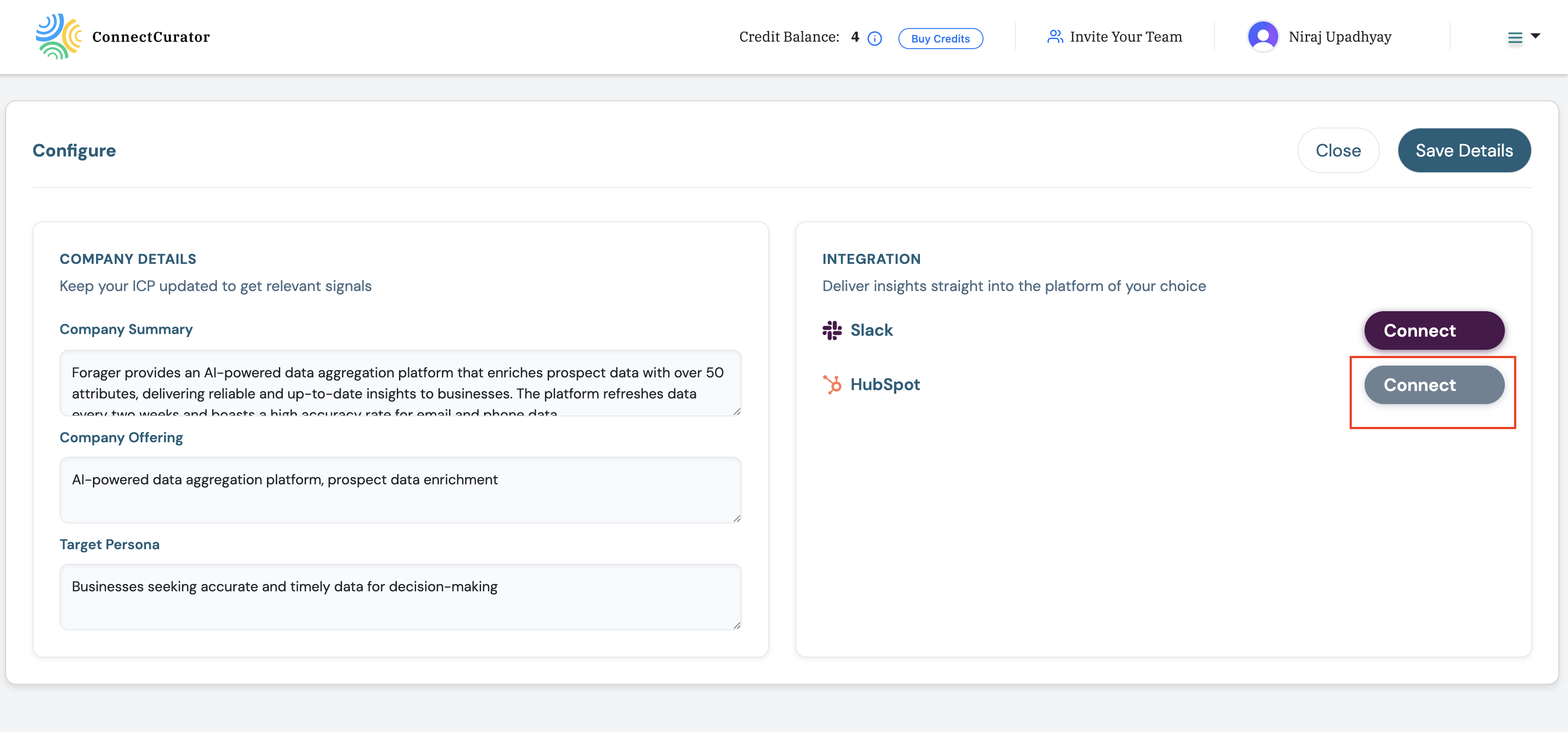
- Locate the HubSpot card.
- Click Install or Connect HubSpot.
- Select your HubSpot account in the authorization window.
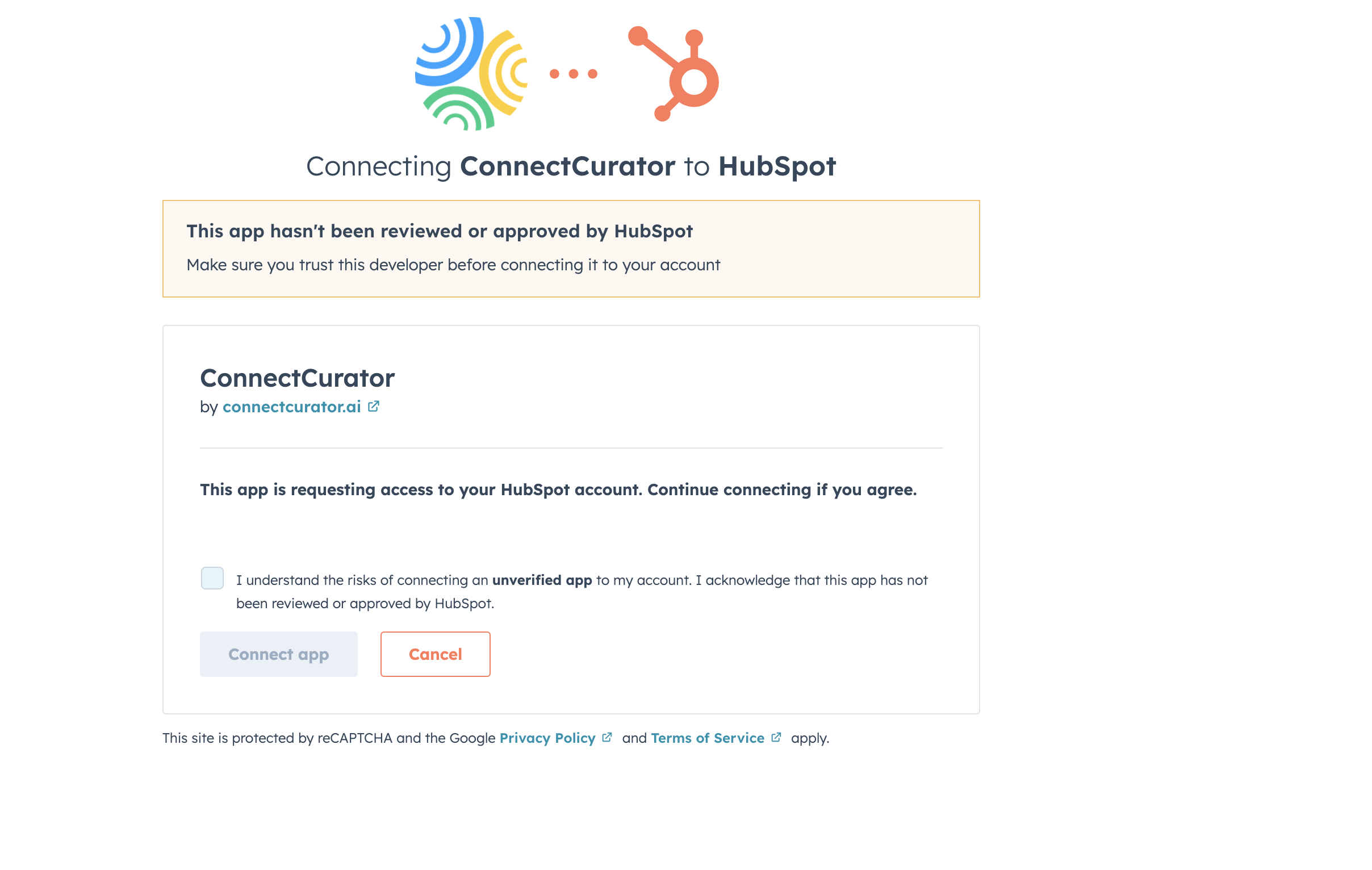
- Review the requested scopes. ConnectCurator requests access to
crm.objects.companies.readandcrm.objects.companies.write. - Click Connect app.
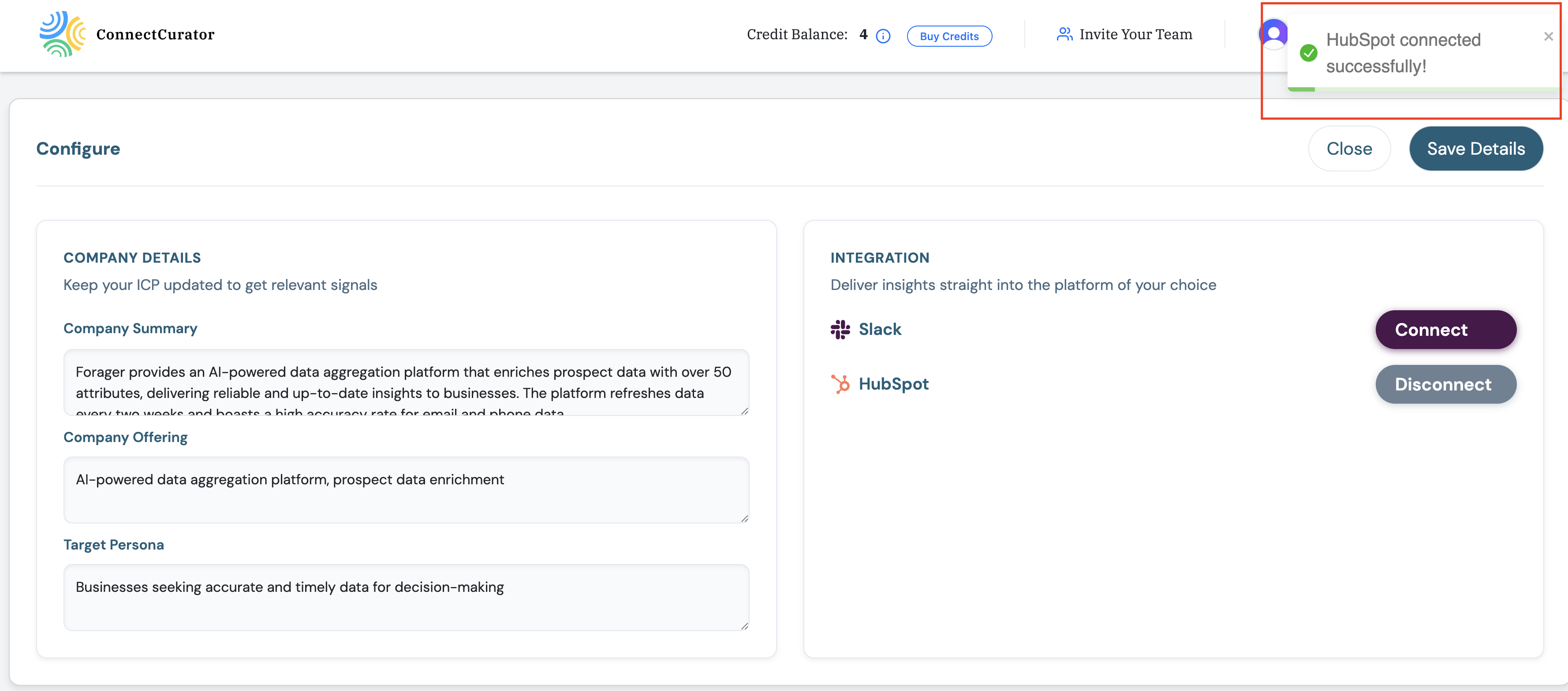
- You will be redirected to ConnectCurator and see HubSpot marked as Connected.
Find the HubSpot integration card
Open Settings > Configure to view the list of integrations and select HubSpot.
Approve requested scopes
Confirm the read/write scopes so ConnectCurator can write signals into HubSpot company notes.
Confirm the connection
Once authorized, you will see HubSpot marked as Connected inside ConnectCurator.
Configure the app
Once connected, choose which companies should sync and confirm matching details.
- In ConnectCurator, go to Settings > Configure > HubSpot.
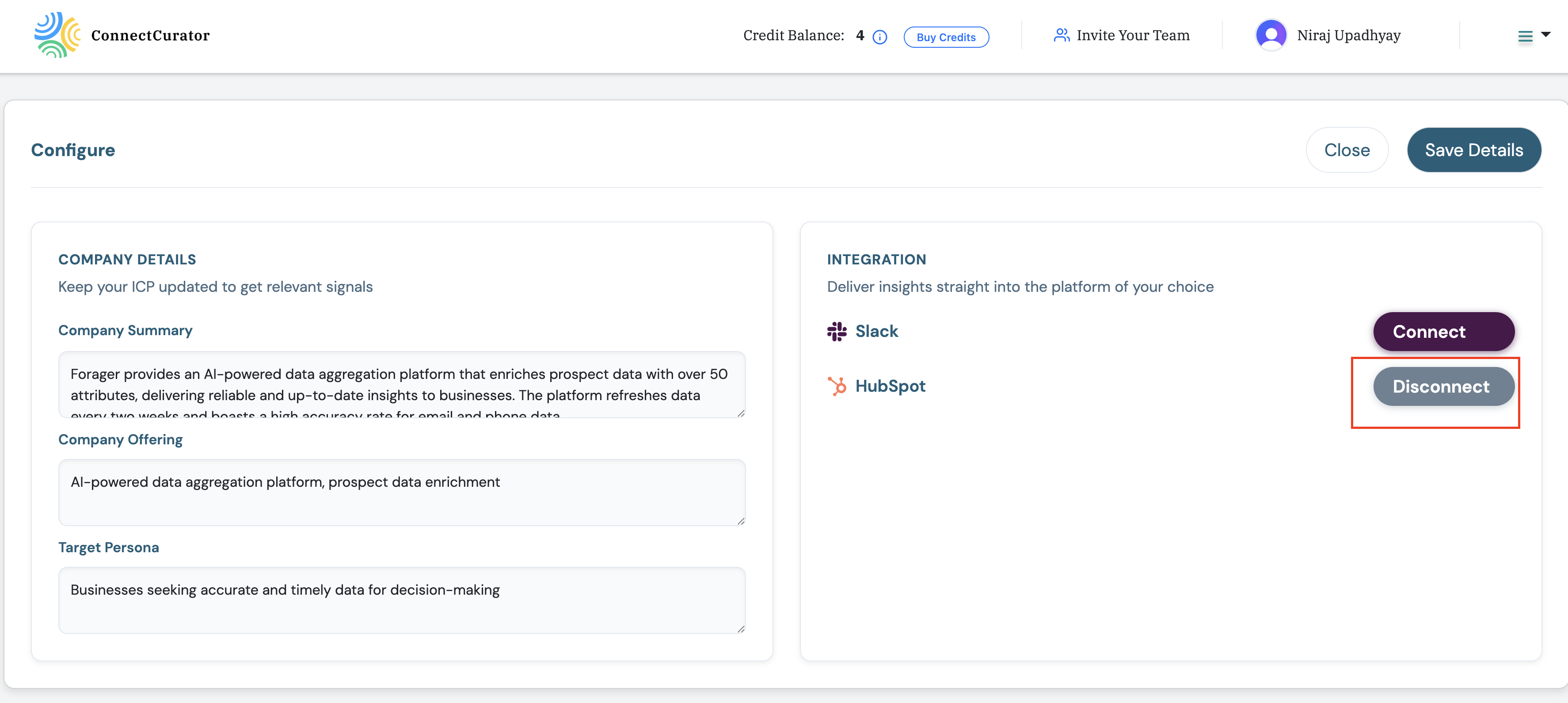
- Confirm the connection status shows Connected.
- Add the companies you want to sync to your watchlist.
- For each watched company, toggle Monthly Auto-Export to HubSpot.
- Ensure each company has a valid domain so HubSpot can match the company record.
- No field mapping is required; ConnectCurator writes signals as HubSpot company notes and creates tasks for high-confidence, high-relevance signals.
Confirm integration settings
Verify the connection status and review the integration details before enabling exports.
Enable auto-export for watched accounts
Turn on Monthly Auto-Export for each account so signals flow into HubSpot automatically.
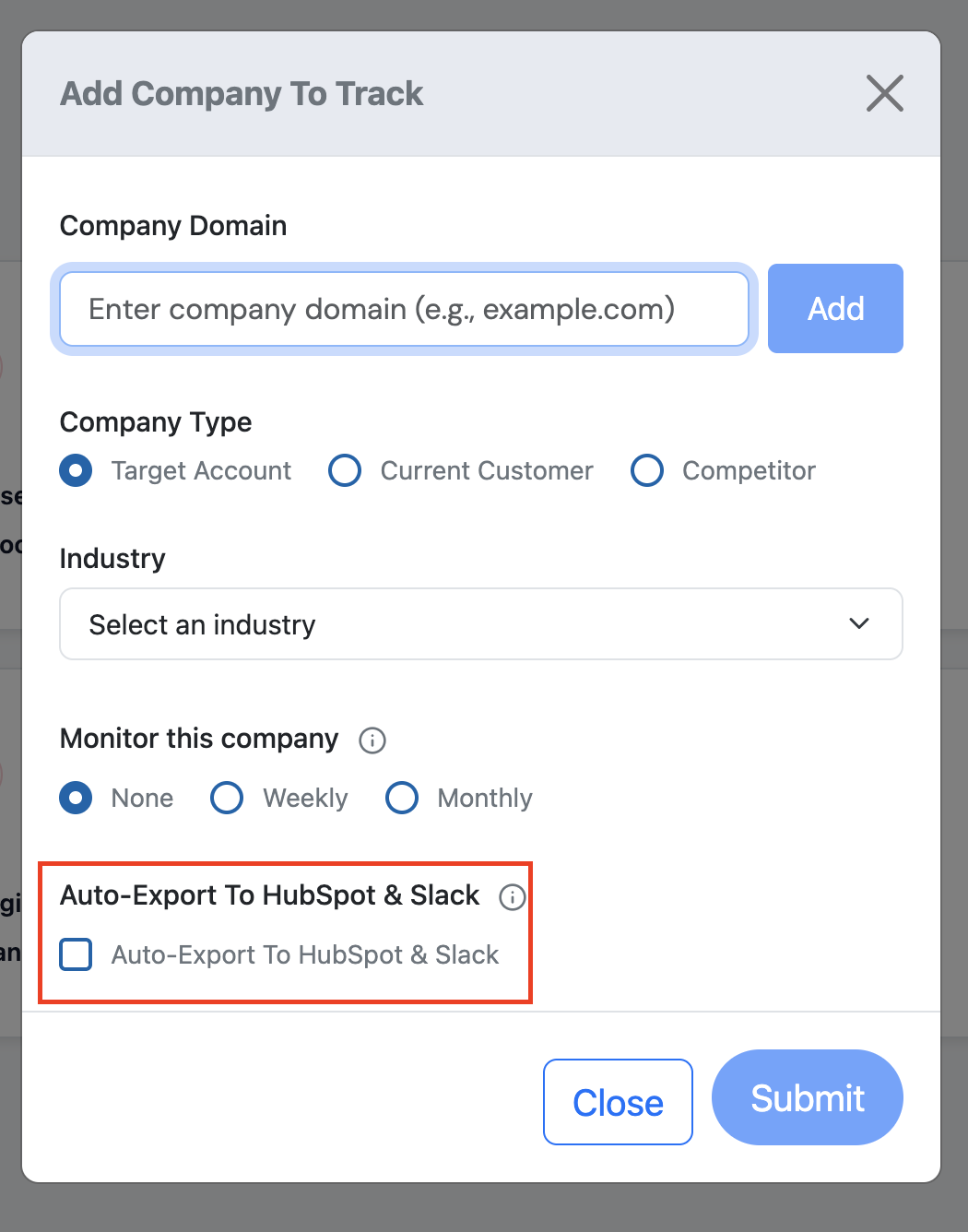
Make sure each account has a valid company domain before enabling auto-export.
Use the app
ConnectCurator automatically sends new high-relevance company signals to HubSpot company notes for watched accounts. High-confidence, high-relevance signals also create company-level tasks assigned to the company owner.
To export a signal manually:
- From the Dashboard, open the menu (...) for an account.
- Select Export to HubSpot.
- Open the HubSpot company record to view the new note.
- Alternatively, open Signals & Source Intelligence and select Export > Export to HubSpot.
Manually export a signal
Use the account menu or Signals view to export a single signal into HubSpot on demand.

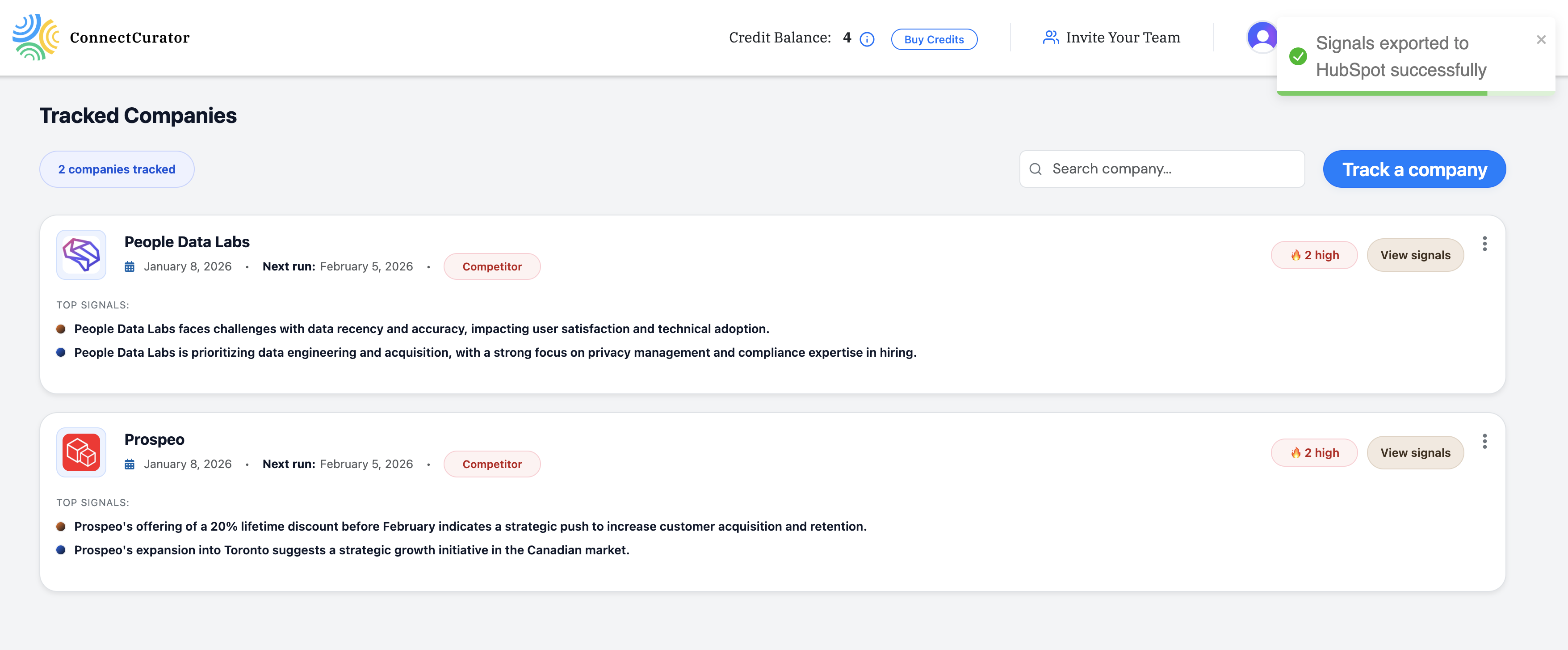
Confirm the export
Review the confirmation message to ensure the signal was sent successfully.
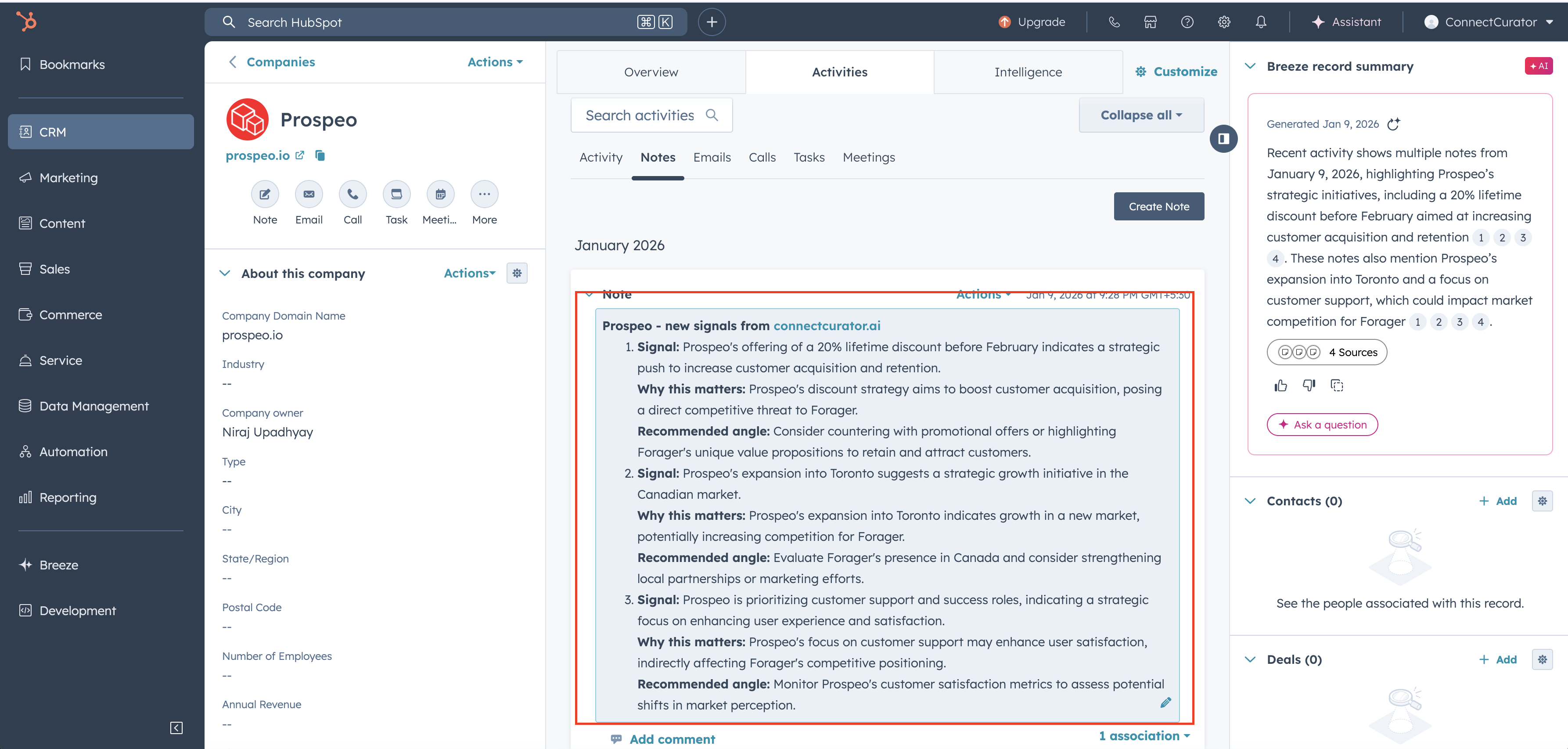
View signals inside HubSpot
Signals appear as notes on the matching HubSpot company record for quick context.
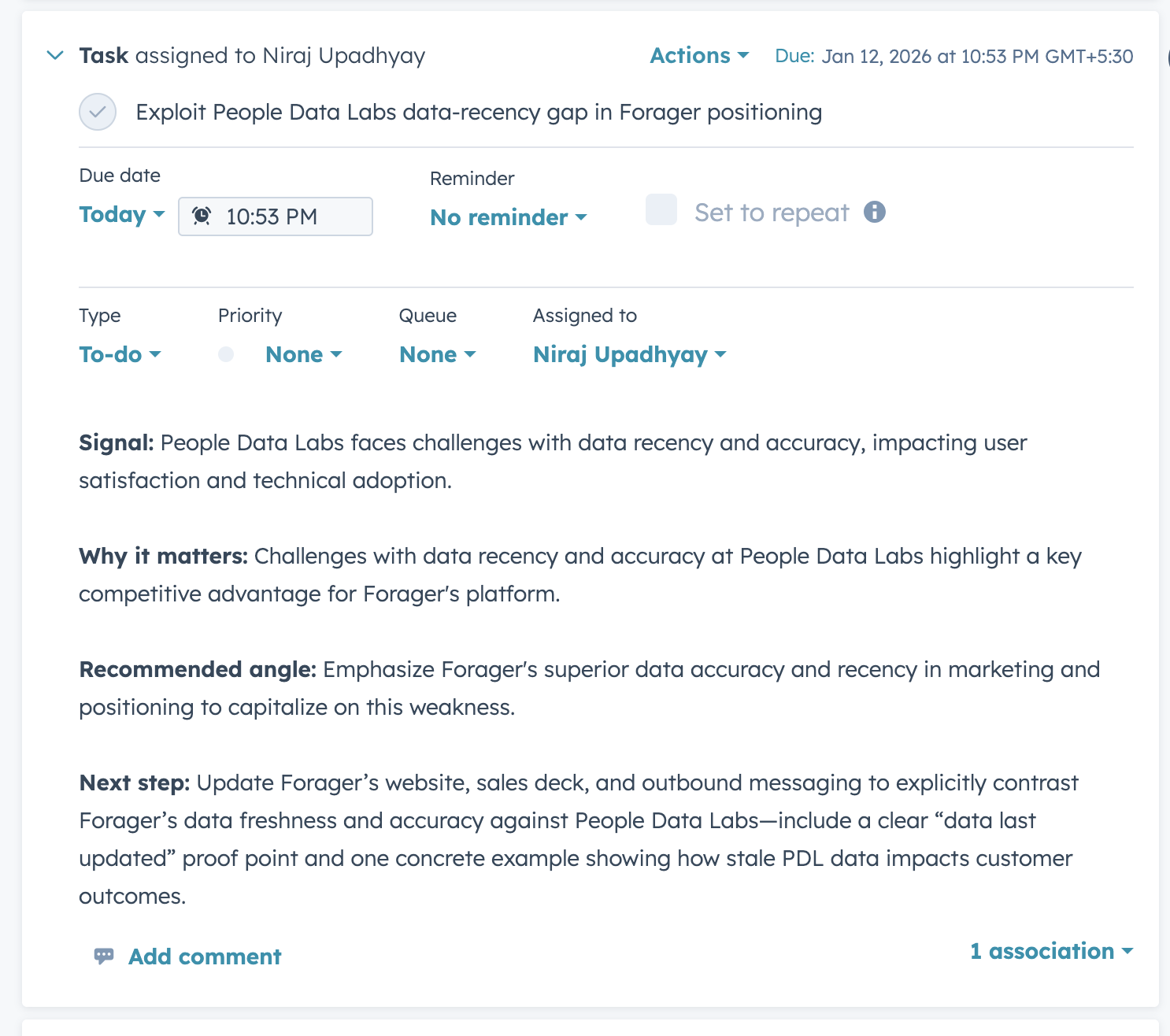
Auto-create tasks for high-confidence signals
High-confidence, high-relevance signals generate tasks assigned to the company owner.
Disconnect the app
Note: Disconnecting stops future syncs. Existing HubSpot notes remain on company records.
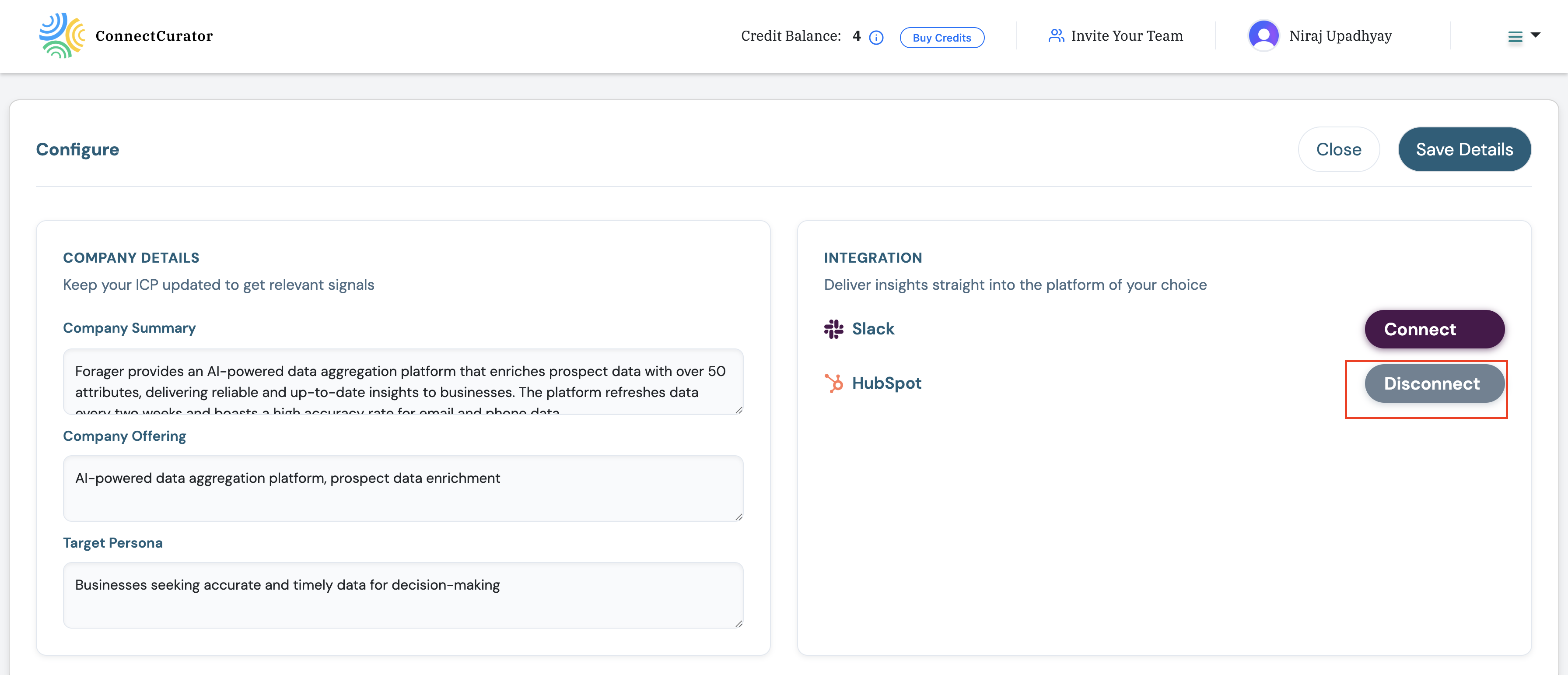
- In ConnectCurator, go to Settings > Configure > HubSpot.
- Click Disconnect.
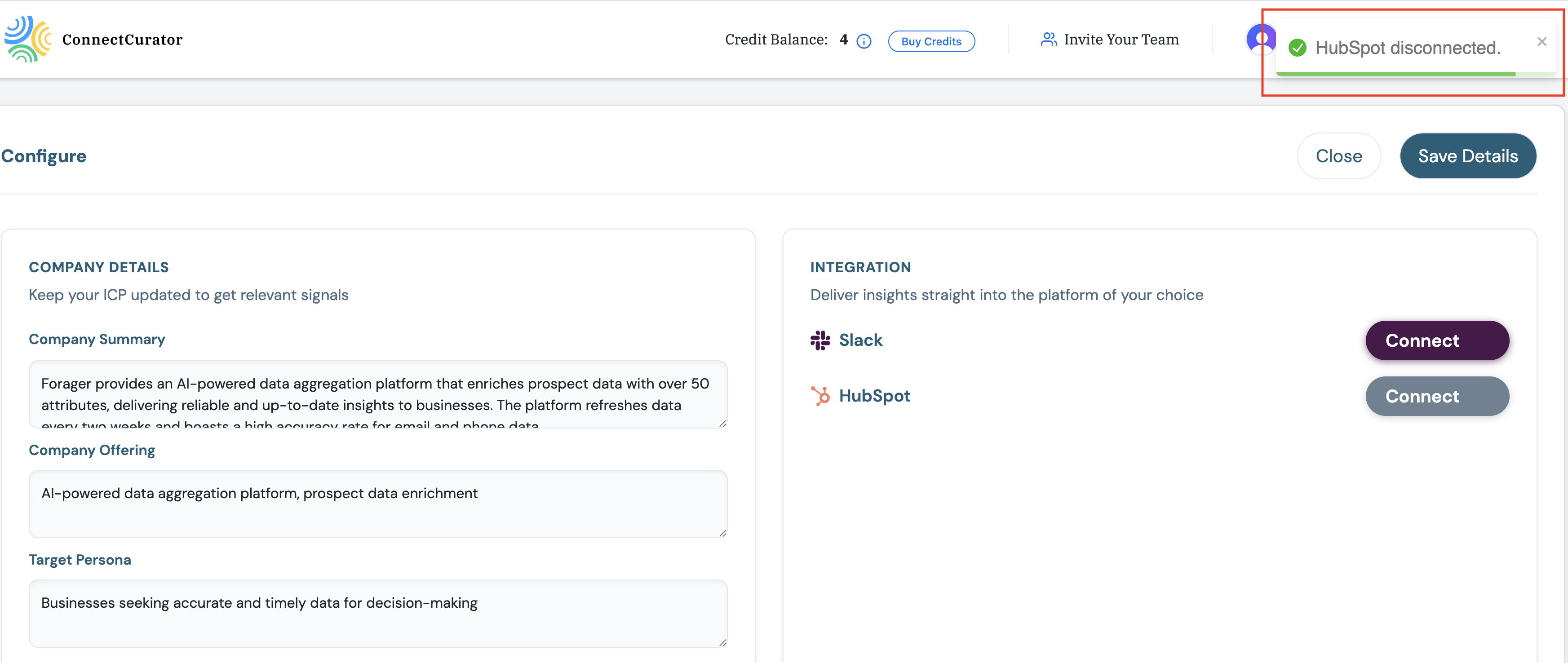
- Confirm the prompt.
Disconnect from Settings
Use the Disconnect button in the HubSpot integration settings.
Confirm the prompt
Confirm the dialog to stop future exports while keeping existing notes.
Uninstall the app
To remove the app from HubSpot:
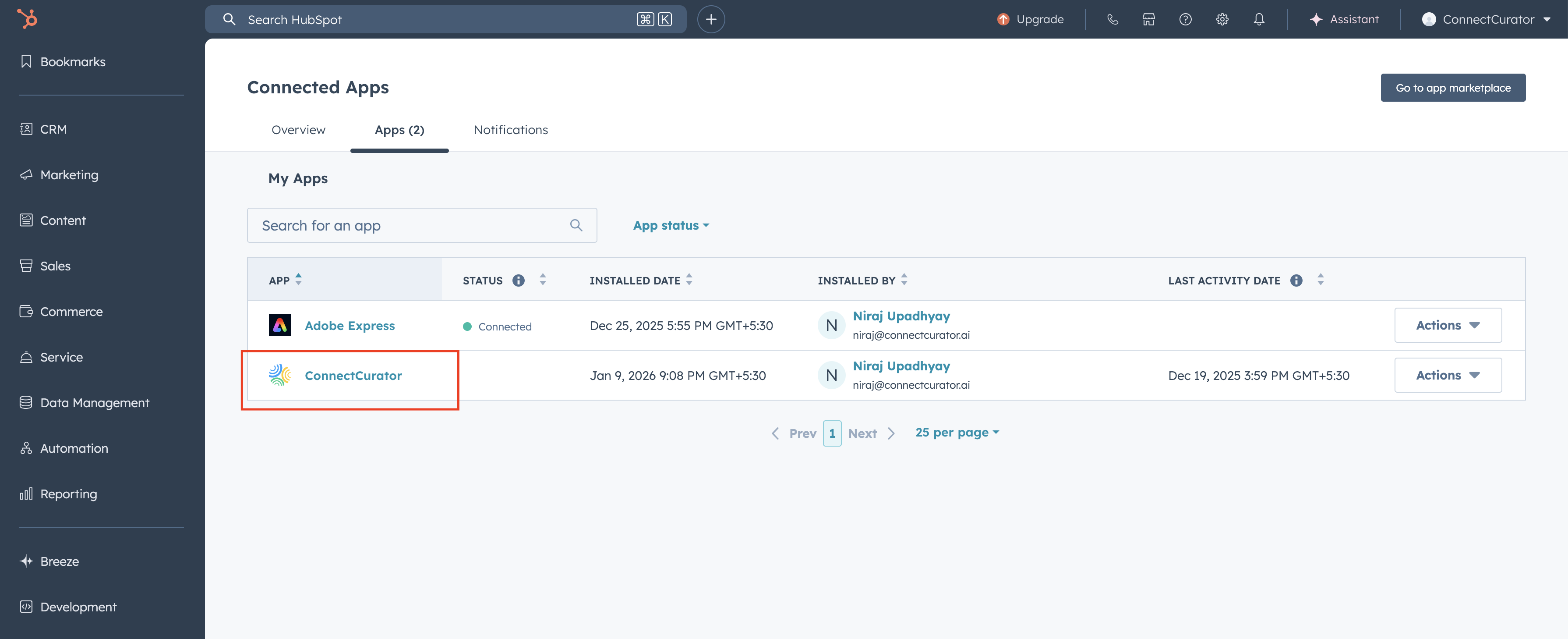
- In HubSpot, go to Settings > Integrations > Connected apps.
- Find ConnectCurator and click Actions > Uninstall.
- Follow the HubSpot prompts to confirm.
For more details, refer to the HubSpot Knowledge Base article on uninstalling apps.
Remove the app in HubSpot
Open Connected apps and remove ConnectCurator when you are ready to uninstall.
FAQ
Where do signals appear in HubSpot?
Signals are written to the Notes section of the matching HubSpot company record. High-confidence, high-relevance signals also create company-level tasks assigned to the company owner.
How does ConnectCurator match companies to HubSpot?
Matching is based on company domain. Make sure each account has a valid domain set in ConnectCurator.
Can I export a signal manually?
Yes. Use the account row menu or Signals & Source Intelligence view and select Export to HubSpot.